Variable Selection
How to select and change boolean variables in the Branch on Boolean node
The Branch on Boolean node provides flexible variable selection through the Details Panel. You can change which boolean variable the node uses at any time, and the node automatically detects all available boolean variables in your Blueprint.
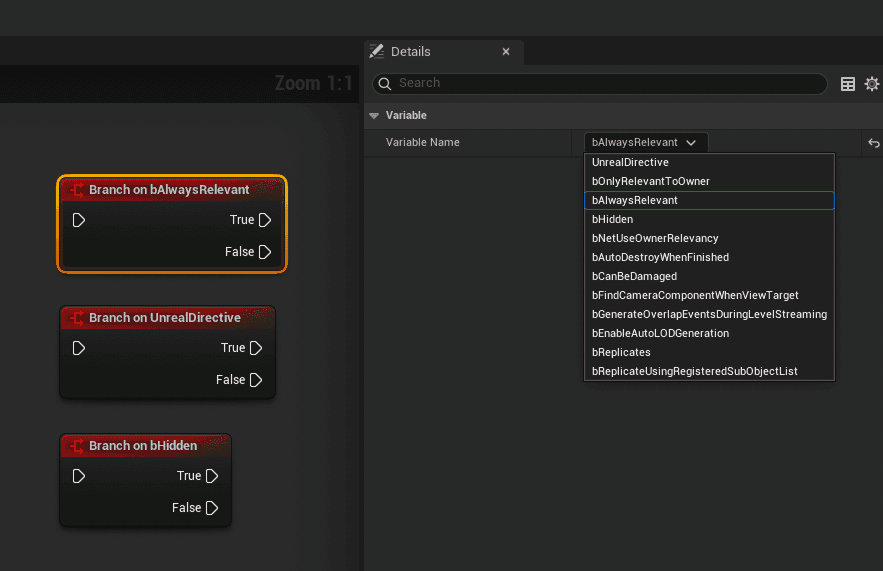
Changing the Variable
Select the Node
Click on the Branch on Boolean node in your Blueprint graph.
Open the Details Panel If not already visible, open the Details Panel via
Window → Details or press F4.
Find the Variable Dropdown In the Details Panel, locate the **Variable
Name** dropdown under the Variable category.
Select a Variable Click the dropdown to see all available boolean
variables. Select the one you want to use.
Verify the Change
The node title updates to reflect the new variable (e.g., "Branch on bNewVariable").
Supported Variable Types
The node's variable dropdown automatically detects and lists all boolean variables available in the current context:
Member Variables
Boolean variables defined directly on the Blueprint class.
MyCharacter Blueprint
├── bIsAlive ✓
├── bCanJump ✓
├── Health (Float) ✗
└── Name (String) ✗
Only boolean (bool) variables appear in the dropdown.
Local Variables
Boolean variables defined within the current function or event graph.
Local variables are only visible when the Branch on Boolean node is placed inside the function where they're defined.
Inherited Variables
Boolean variables inherited from parent classes (both Blueprint and C++ parents).
Parent: ACharacter (C++)
├── bCanEverTick ✓
├── bInputEnabled ✓
└── bBlockInput ✓

Parent: BP_BaseCharacter (Blueprint)
├── bIsInCombat ✓
└── bHasWeapon ✓
All BlueprintVisible boolean properties from parent classes are included.
Automatic Rename Tracking
One of the key features of Branch on Boolean is automatic rename tracking:
Rename a Variable
In the Variables panel, rename your boolean variable (e.g., bIsAlive → bIsActive).
Node Updates Automatically
All Branch on Boolean nodes using that variable will automatically update their titles to reflect the new name.
This works because the node stores the variable's internal GUID, not just its name. When the Blueprint compiles, the node looks up the current name for that GUID.
Variable Not Appearing?
If a boolean variable doesn't appear in the dropdown, check the following:
| Issue | Solution |
|---|---|
| Variable is not boolean type | Only bool variables are listed. Check the variable type. |
| Variable is private | Ensure the variable has BlueprintReadOnly or BlueprintReadWrite access. |
| Variable is deprecated | Deprecated properties (marked with Deprecated metadata) are excluded. |
| Variable is in another function | Local variables only appear in their defining function's scope. |
| Blueprint not compiled | Compile your Blueprint to refresh the variable list. |
Working with Multiple Nodes
When you have multiple Branch on Boolean nodes using the same variable:
- All nodes update together when you rename the variable
- Each node is independent - changing one node's variable doesn't affect others
- Validation happens at compile time - if a variable is deleted, affected nodes will show errors
Best Practices
Use Descriptive Names
Since the variable name is prominently displayed in the node title, use clear, descriptive names:
| Good | Avoid |
|---|---|
bPlayerAlive | bFlag1 |
bCanDoubleJump | bTemp |
bTutorialCompleted | bDone |
Prefix with 'b'
Follow Unreal Engine's naming convention by prefixing boolean variables with b:
bIsEnabledbShouldUpdatebHasBeenTriggered
Next Steps
- Node Reference - Complete technical reference for the node
- Troubleshooting - Common issues and solutions